ZPUNK 2.0 / MANUAL
The ZPUNK 2.0 guide

Create. Arrange. Export.

A pocket music workstation for beats, melodies, sample chops and full song ideas. Five tracks. One touch-first workflow.

Your guide to the ZPUNK 2.0 workflow.
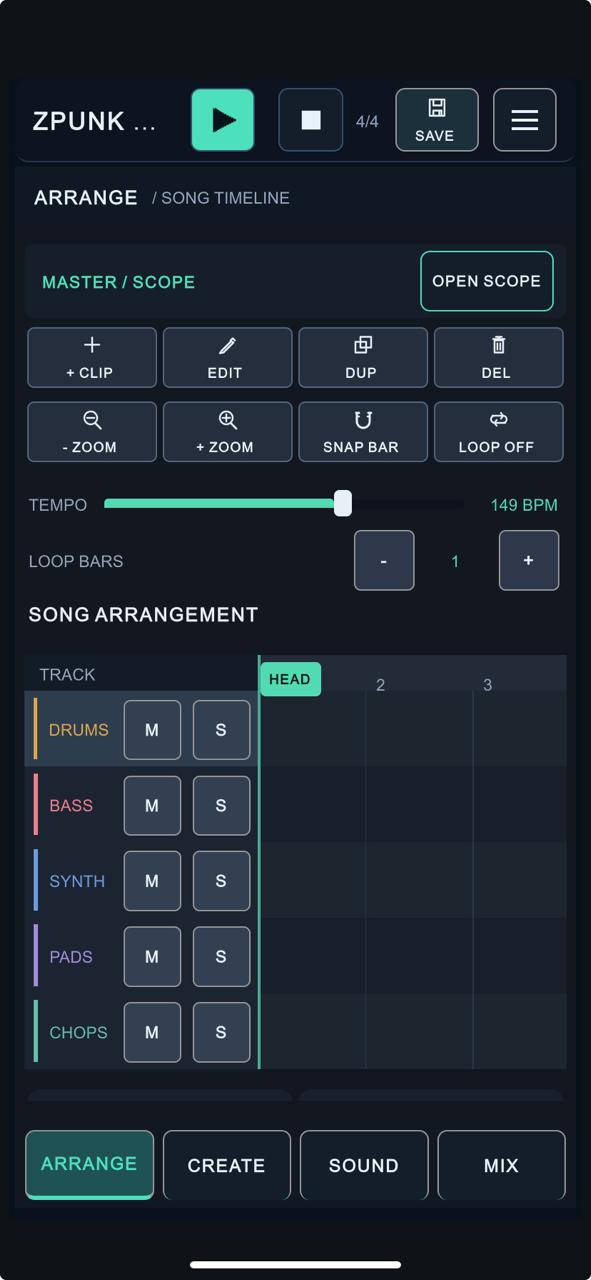
Arrange view
The ZPUNK approach

Less setup.
More music.

Good ideas don’t always arrive when you’re sitting in front of a studio. ZPUNK keeps the essentials together in one touch-first workspace, so you can start with a beat, a melody, or a sample—and build from there.

Your workspaceReady from the start
DRUMSRhythm
BASSLow end
SYNTHMelodies
PADSHarmony
CHOPSSamples

Five musical roles. One arrangement.

01 / READY TO CREATE

A place for every part.

Drums, bass, synth, pads and chops already have their own space. No need to build a track layout before exploring an idea.

Explore the arrangement ↗
02 / FIND A STARTING POINT

Generate, then make it yours.

Choose a genre and style to generate rhythmic and melodic patterns. Use a chord progression to help connect your musical parts.

Explore generation ↗
03 / STAY HANDS-ON

Shape the details.

Edit individual notes and drum hits, chop samples, design drum sounds and audition synth patches as you adjust them.

Explore sound design ↗
04 / KEEP GOING

From sketch to song.

Arrange ideas on a timeline, then export WAV, MIDI or collected stems when you’re ready to continue on your computer.

Explore collecting & export ↗
01 / Quick start

From first clip to finished idea.

01Arrange

Set your tempo and add clips to the five-track song timeline.

02Create

Write notes, generate a pattern, or sequence slices inside a clip.

03Sample & mix

Chop audio, shape your patches and balance tracks in MIX.

04Save & export

Save your work, export audio or MIDI, or collect everything for your desktop DAW.

ZPUNK / In motion

See it in action.

Get a feel for the pocket workflow. Watch ZPUNK running on a phone, then explore the tools in the manual below.

The preview starts muted. Video controls are below.
Watch the ZPUNK demo · portrait playback
ZPUNK / Music gallery

Made with ZPUNK.

A growing collection of musical sketches, loops and performances created with ZPUNK. No categories. Just music.

Loading music sessions…

Swipe sideways or use the arrows to explore sessions. Select a video to watch with sound and playback controls.

Made with ZPUNK

02 / Arrange

Build beyond the loop.

ARRANGE is the multitrack song timeline. Place patterns across bars, adjust the song tempo, and build complete sections and variations.

Work in clips.

Add a clip on DRUMS, BASS, SYNTH, PADS or CHOPS, then open CREATE to edit its pattern. Duplicate clips for new sections, or change their length directly in the timeline.

  • + CLIP / EDIT / DUP / DEL: create a clip, open its notes, duplicate it or remove it.
  • Extend or shorten: resize a clip from its edge. Extending a patterned clip repeats the corresponding sequence so the editor matches the new clip length.
  • BPM & transport: set the tempo and use play/stop to audition your arrangement.
  • Active playback: the green position marker appears on clips that are actually playing, rather than every clip.

Arrangement concept · illustrative, not an app screenshot

03 / Create

Write the music.

Select a track and open a clip in CREATE. Tap an empty cell to add a note; tap an existing note to remove it. Drag a note to move it, or drag its right edge to resize it. Generated notes are editable the same way as manually placed notes.

Use OCT −/+, LEN −/+, NOTE DEL and the VELOCITY control to refine your part. The piano-roll timeline and note labels stay visible as you edit, and the editor focuses on the clip’s existing notes.
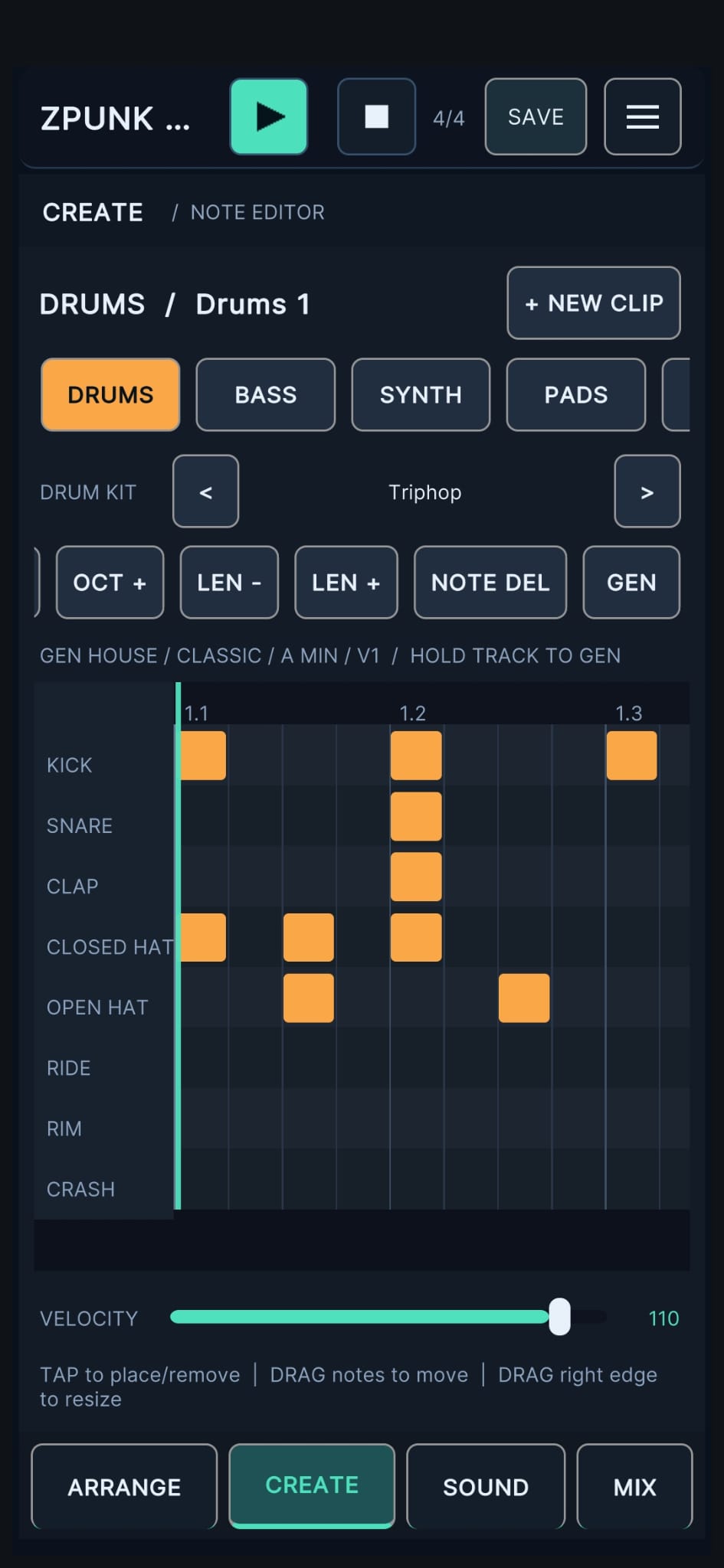
DRUMS

ZPUNK 2.0 eight-lane drum note editor

Sequence eight drum voices, change kits and set note velocity.
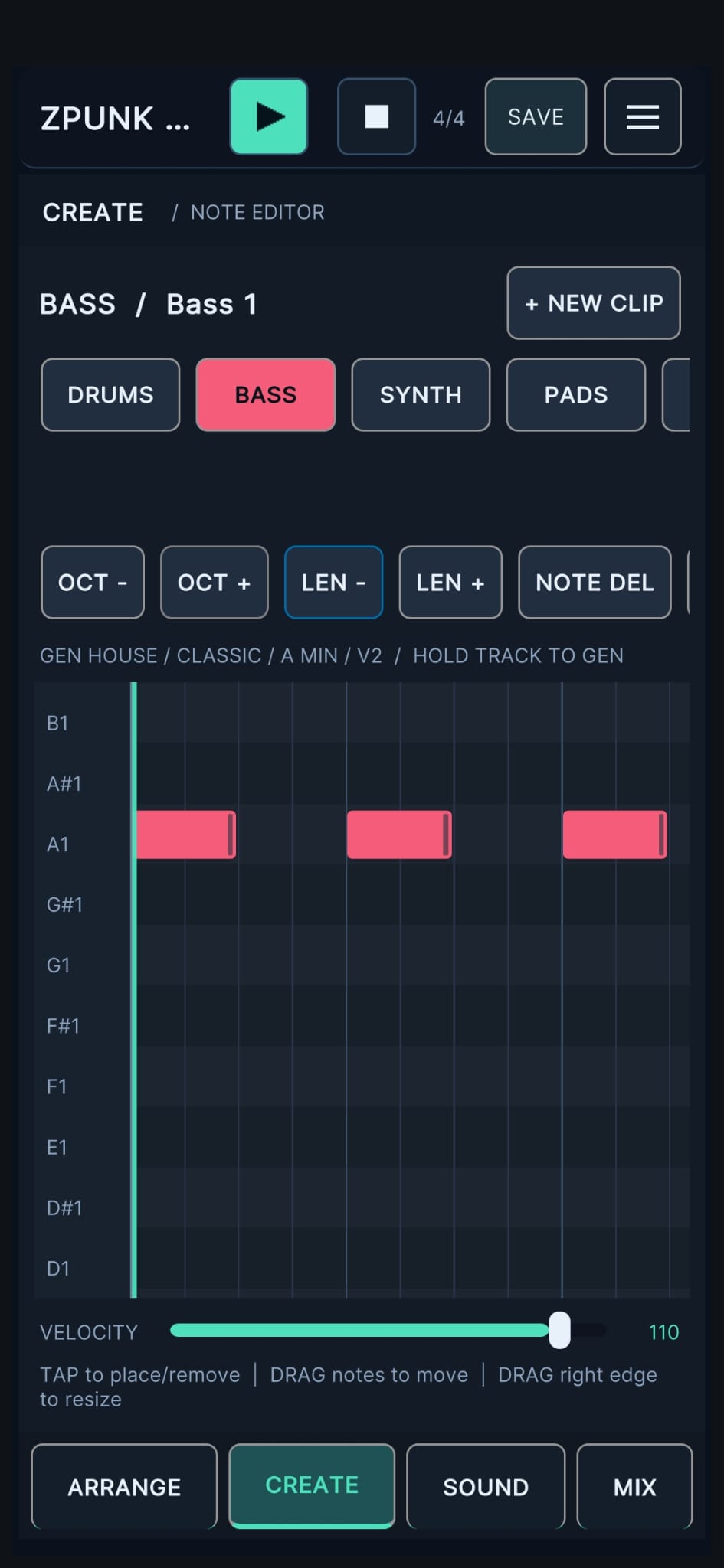
BASS

ZPUNK 2.0 bass piano roll with three notes

Write basslines or generate them using the shared progression and key.
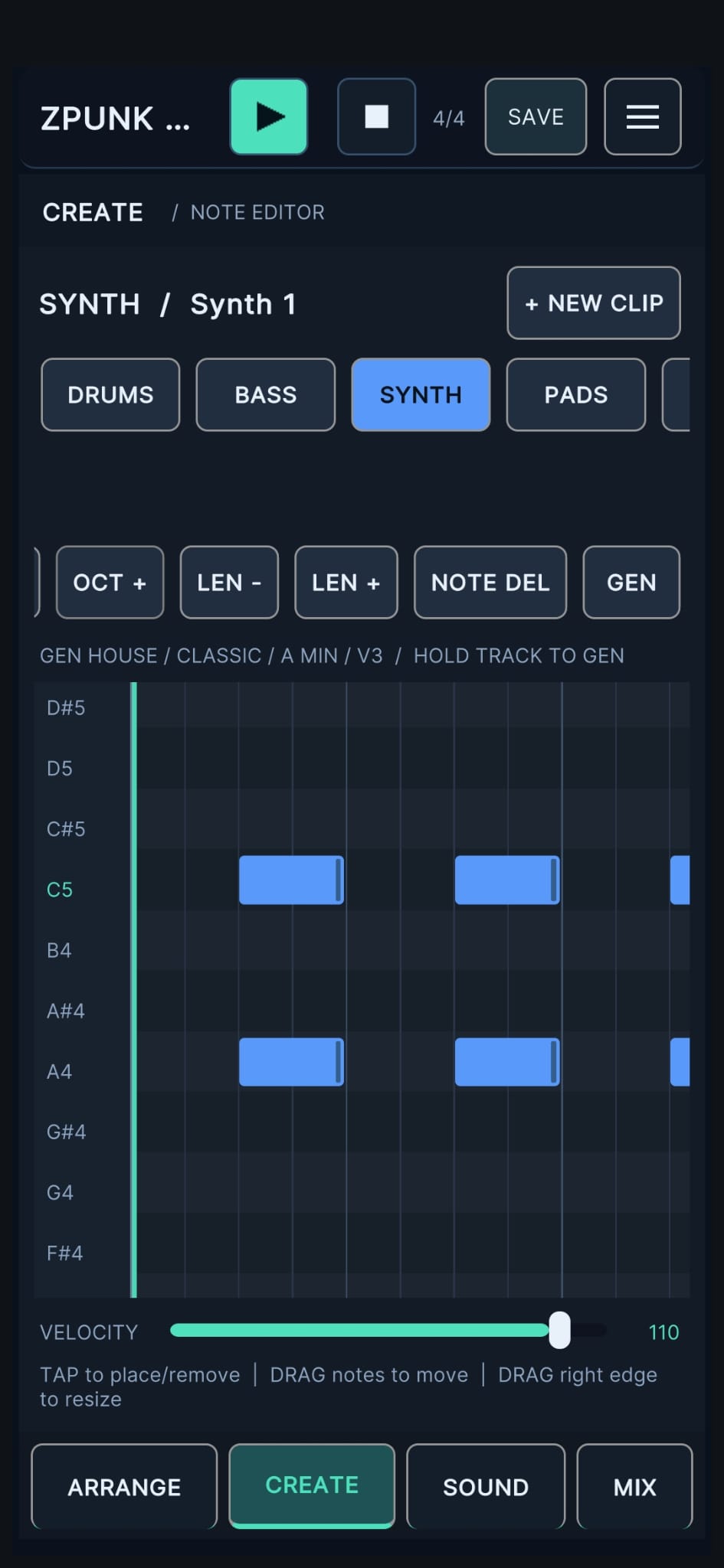
SYNTH

ZPUNK 2.0 synth piano roll with blue notes

Write or generate melodies, riffs and chord patterns.
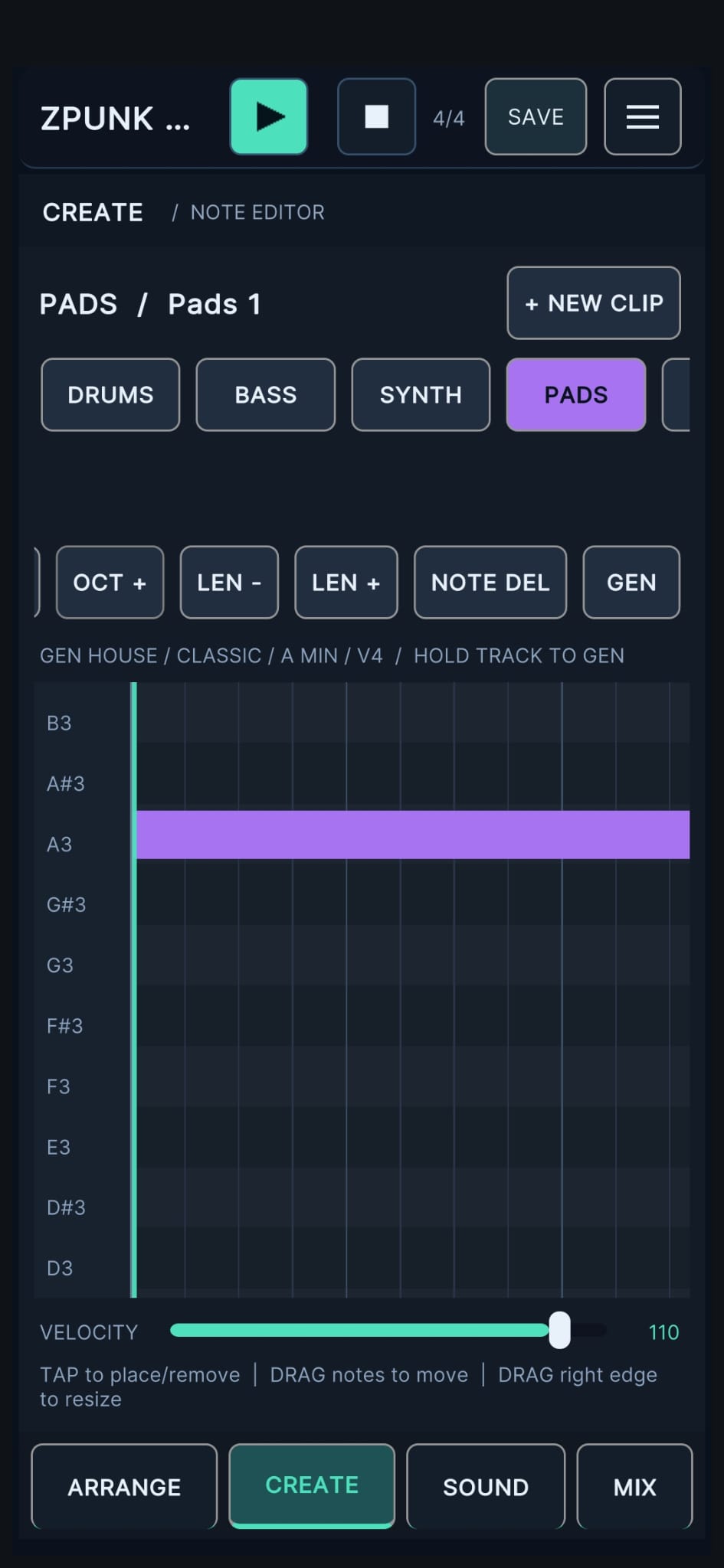
PADS

ZPUNK 2.0 pads piano roll showing a sustained note

Layer chords and pads using the same harmonic progression.

Tap any screenshot to view it at full size. Scroll the track selector to CHOPS and SAMPLER.

Composing from a sample? The sampler estimates the source key and the key after pitch shifting. Use the sample-key guide to highlight notes in the BASS, SYNTH and PADS piano rolls. The detected key is an estimate, so check it by ear.
04 / Sampler & Chops

Make samples your own.

Load a sample in SAMPLER, find its rhythmic hits, place or adjust chop markers, and sequence the resulting slices in CHOPS. The Slice Lab combines manual editing with transient detection, BPM/key estimates and optional warping. For clean, grid-timed chops, use WARP to check alignment, then switch it OFF before sequencing.
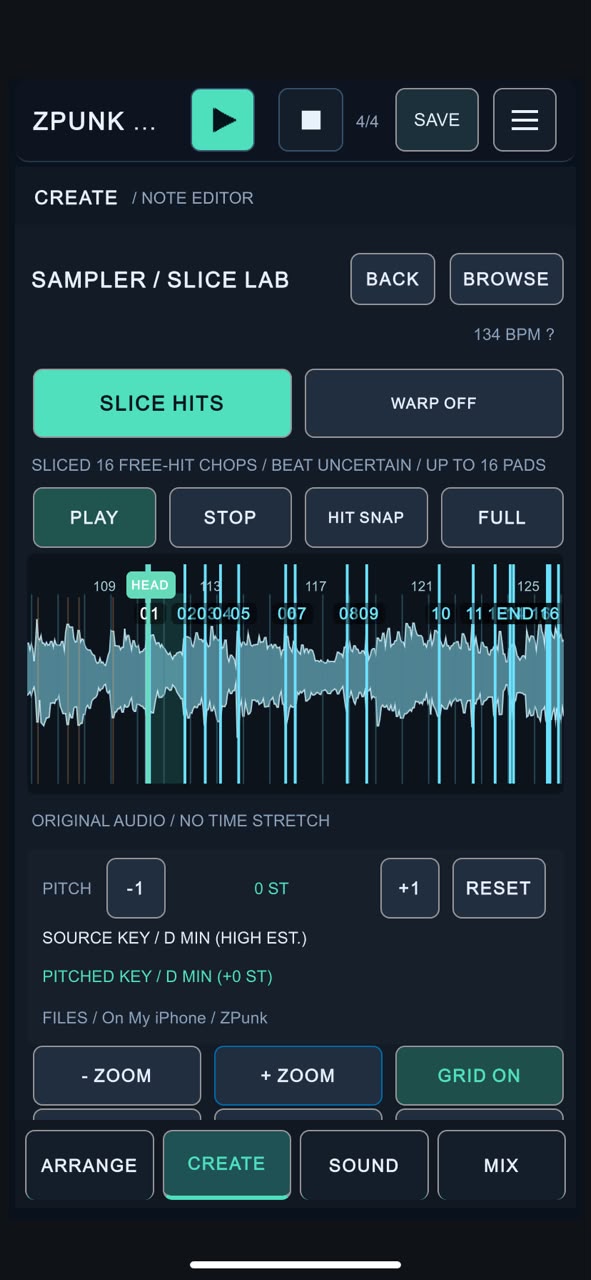
ZPUNK Slice Lab showing SLICE HITS, WARP, HIT SNAP, sample key and zoom controls

01 / Slice Lab

Choose a file with BROWSE, press PLAY to audition it and use the waveform to locate the sections you want. Pinch/zoom or use − ZOOM and + ZOOM for fine adjustments; FULL returns to the full-sample view.
  • SLICE HITS: automatically propose markers at detected musical transients. Adjust boundaries manually to fine-tune your chops.
  • HIT SNAP / GRID: use detected hits and the beat grid as visual and positioning guides; BPM analysis helps align the grid to the audio.
  • WARP: process audio toward the project BPM/grid while aiming to preserve pitch; processing progress appears below the waveform. After warping, turn WARP OFF for cleaner chop playback if you hear flutter, smearing or other artifacts. WARP OFF returns to the original audio rather than saving the stretched version.
  • PITCH −1 / +1 / RESET: transpose in semitone steps and view estimated original and pitched keys.
  • APPLY CHOPS: commit the edited chop boundaries to the CHOPS track.
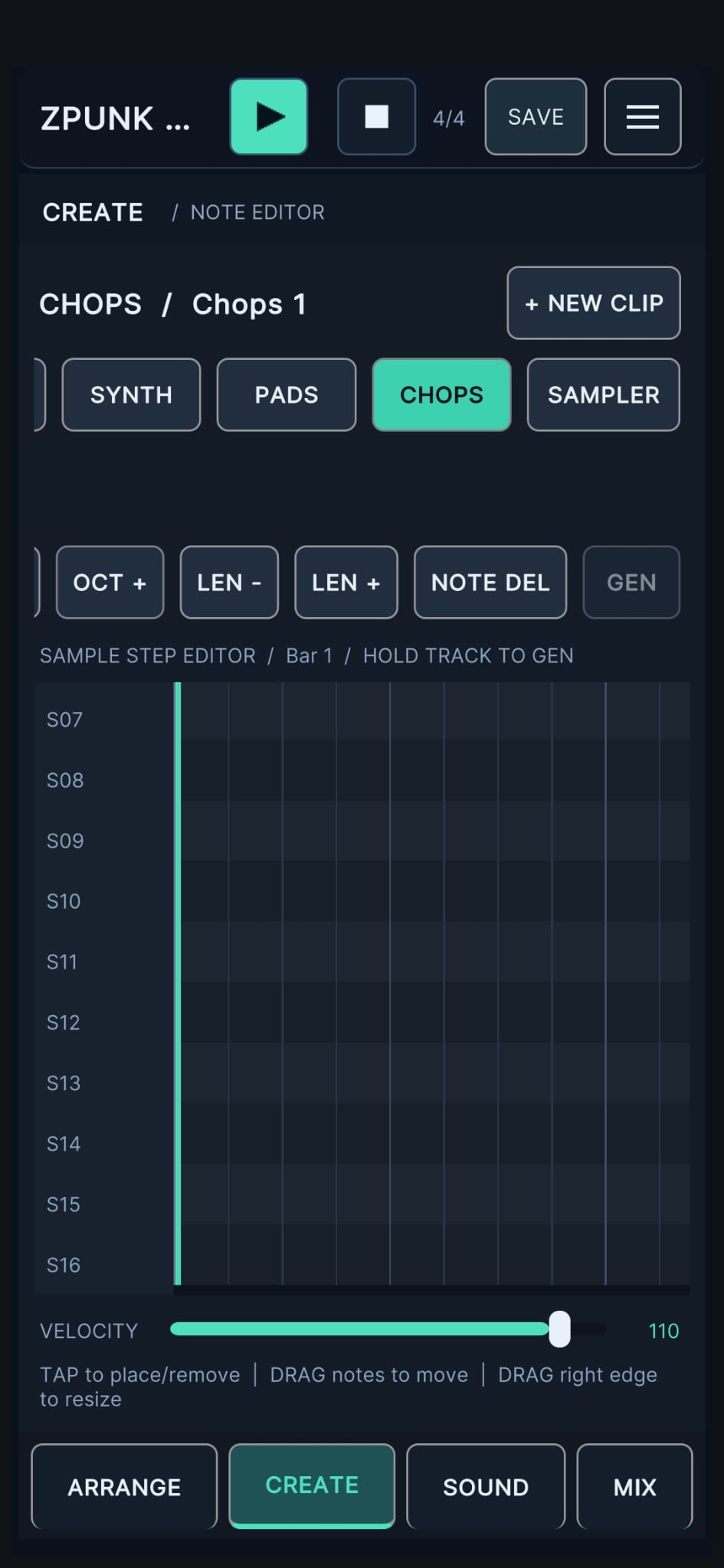
ZPUNK CHOPS step editor with sample trigger lanes

02 / Sequence Chops

Switch to CHOPS in CREATE and place triggers for your sample slices. Each lane plays a chop, so you can rearrange a break, vocal or melodic phrase against the other tracks.

  • 16 chop pads/lanes: select and audition slices from your loaded sample.
  • Step editing: tap to add/remove triggers, drag to move them, or adjust their length.
  • Grid timing with WARP OFF: CHOPS still triggers each slice on the project’s sequencer grid using the original, unprocessed audio. This often keeps drum breaks and short chops tight without time-stretch artifacts.
  • Long phrases: with WARP OFF, a slice plays at its original speed, so longer musical sections may drift or overlap at a different project BPM.
  • Tempo & mix: arrange chops on the same song timeline and control their level in MIX.
Recommended workflow — WARP ON, then OFF:
  1. Load your sample and detect its BPM. Use WARP ON to bring the audio toward the project grid, then check and adjust your chop markers.
  2. Turn WARP OFF after the warp completes. This restores the clean, original audio and can remove time-stretch artifacts while keeping your slice workflow intact.
  3. Choose APPLY CHOPS and sequence the slices in CHOPS. Their triggers follow the project tempo even with WARP OFF.

Important: WARP OFF does not permanently retain the stretched audio or force an entire sample to stay in time. It is the sequenced chop start times that remain locked to the grid; long slices may still need WARP ON to match a new tempo.

Importing your own audio: On iPhone/iPad, put samples in Files → On My iPhone/iPad → zpunk → ImportedSamples (folder name and capitalization matter). On Android, make your audio available through the device’s Music/media library. WAV and MP3 are practical choices; convert FLAC files before importing.
05 / Generate

A starting point in seconds.

Generate editable patterns for DRUMS, BASS, SYNTH and PADS. Hold a track name in CREATE, or use GEN, to open the generator for the selected clip.

Choose the direction.

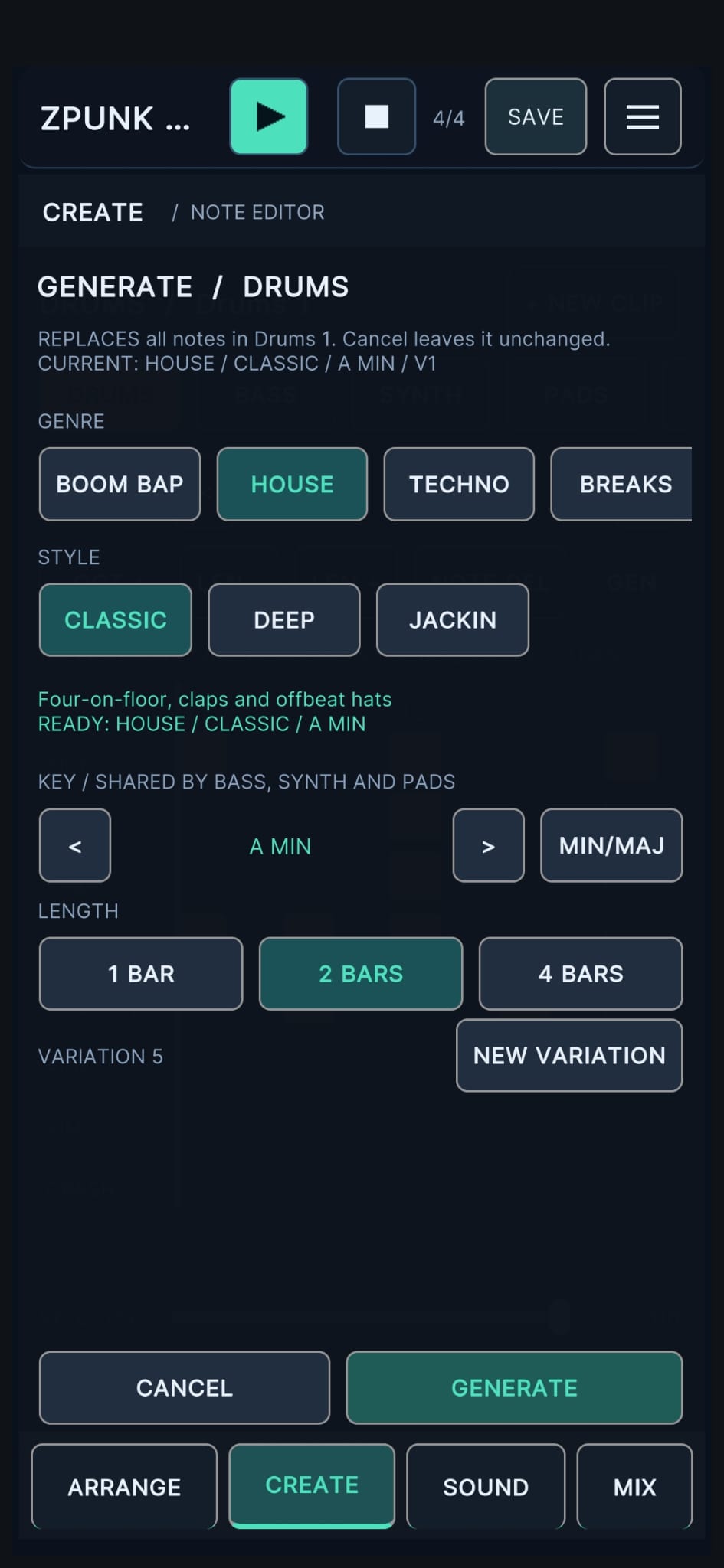
Select a genre, style, key and length (1, 2 or 4 bars), then press GENERATE. Try NEW VARIATION for another take and edit the notes directly in CREATE.
  • Genres: Boom Bap, House, Techno, Breaks and Funk. FUNK includes Disco, Pocket and Electro styles.
  • HOUSE / 90s: a dedicated 90s-inspired style for more rhythmic basslines, melodies and chords.
  • Shared progressions: choose a chord progression (or the genre default) for BASS, SYNTH or PADS. The selected progression is shared so each part can follow the same harmonic movement, while its generated variation remains independent.
  • Key awareness: select the musical key; progression/chord labels reflect that choice.
  • Variation history: save promising generated results, revisit them and use or delete stored variations.
  • Important: committing a generated pattern replaces the notes of the selected clip. CANCEL leaves them unchanged.
ZPUNK 2.0 Generate panel for House drums with genre, style, key, length and variation
06 / Sound & Mix

Find your sound. Balance the track.

Browse and shape instrument sounds in SOUND, then use the redesigned MIX page to balance the full five-track arrangement.
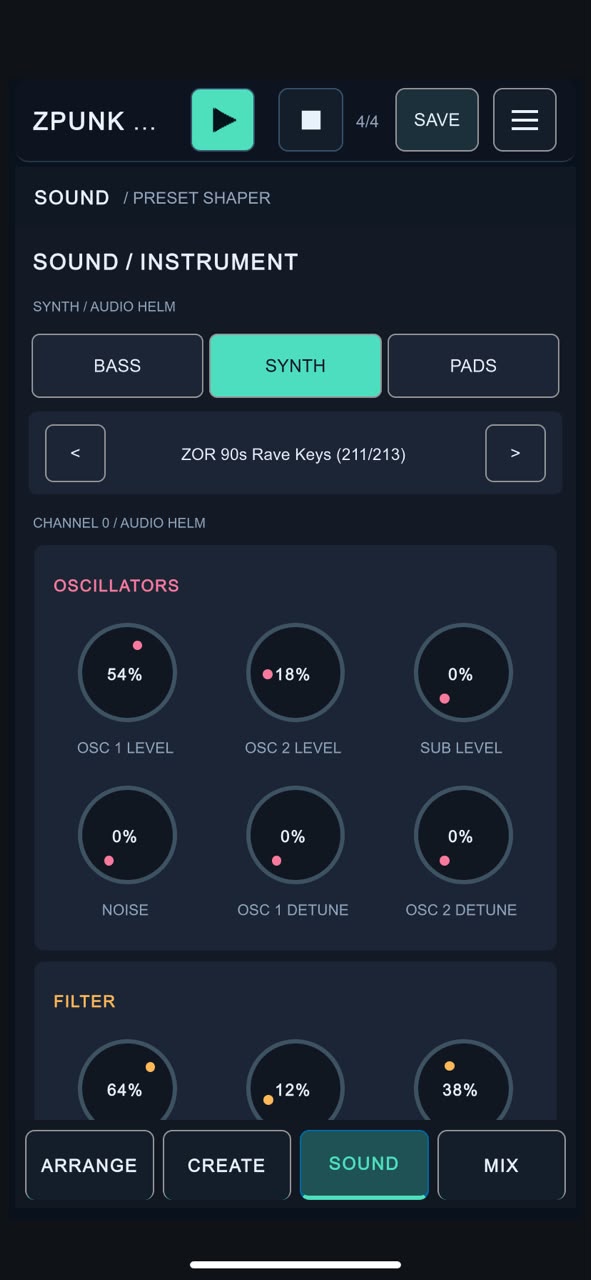
ZPUNK SOUND instrument presets and sound-shaping controls

SOUND

Switch between BASS, SYNTH and PADS and browse the curated ZOR preset collection. Each instrument has its own sound settings.
  • Synth parameters: oscillator, filter and envelope controls such as cutoff, resonance, attack, decay, sustain and release.
  • Effects: available distortion, delay and reverb modules have on/off controls and adjustable parameters.
  • Arpeggiator: shape repeating note patterns where supported.
  • Preset navigation: use the patch arrows to audition different sounds.
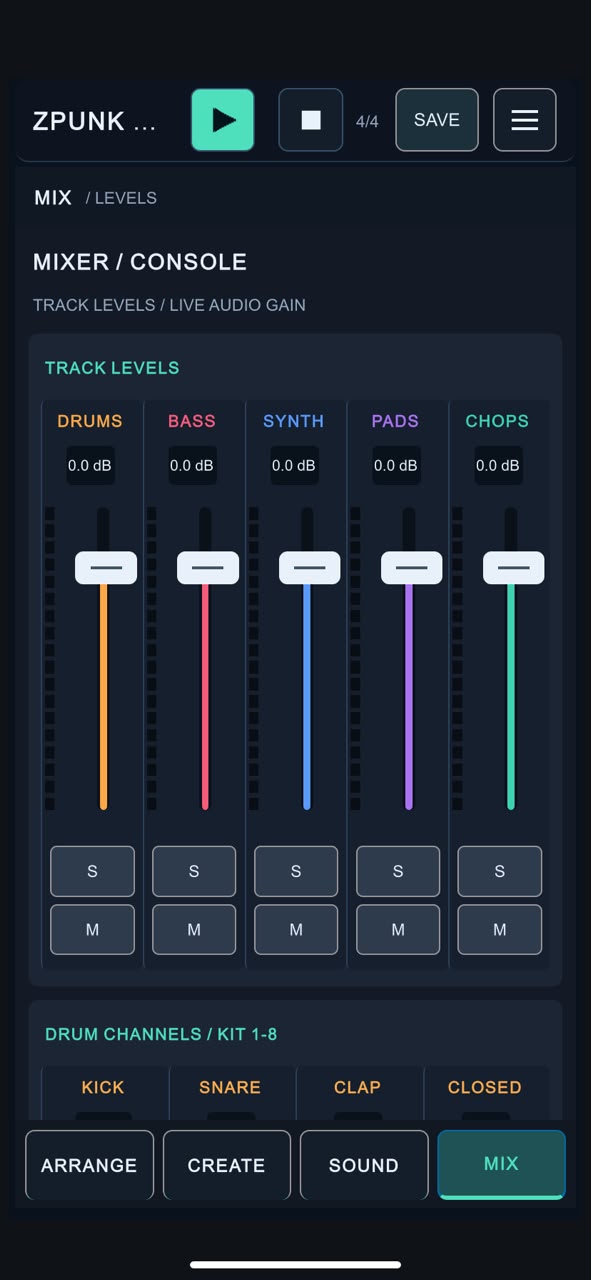
ZPUNK MIX five-channel faders, mute, solo, level meters and drum channel controls

MIX

Balance DRUMS, BASS, SYNTH, PADS and CHOPS using five live channel faders. Meters help you see the activity as the arrangement plays.

  • Faders: set each track’s volume; gain extends up to +6 dB.
  • S / M: solo or mute a channel independently.
  • Level meters: monitor signal activity and avoid overloading your mix.
  • Drum channels: adjust the levels of individual kit voices in the mixer’s drum section.
07 / Save & Export

Keep the idea. Take it further.

Use SAVE in the top bar before closing or switching projects. Export WAV or MIDI on its own, or use COLLECT & EXPORT to take the entire arrangement into a desktop DAW.

Keep imported samples on your device for everyday project loading. Collect & Export makes copies of referenced audio in a separate ZIP; it does not move or rename your originals.

PROJECTSave your clips, notes, arrangement, instrument settings and references to imported audio.
WAVRender your song as audio to share or listen outside ZPUNK.
MIDIExport note and timing data for continued sequencing in other software.
COLLECTBundle a master WAV, five aligned audio stems, MIDI, referenced samples and project data into a ZIP. See the guide.
FILESOn iOS, use the Files save/share interface; on Android, find the export in the device destination used by ZPUNK.
08 / Collect & Export

Start on mobile. Finish on your desktop.

COLLECT & EXPORT gathers your ZPUNK arrangement into a single ZIP you can transfer to a Mac or PC. It includes five synchronized WAV stems, a stereo master mix, MIDI, referenced samples and project data—ready to continue working in Ableton Live, Logic Pro, FL Studio, Reaper or another DAW.

  1. Save and name your project.

    Give the project a recognizable title and save the latest changes. The collected ZIP uses your project name; renaming does not alter the original sample files.

  2. Choose Collect & Export.

    Run collection from ZPUNK's export workflow. The app renders the full master and each of the five tracks, then packages the files together. Keep ZPUNK open while it completes.

  3. Move the ZIP to your computer.

    Save or share the archive from your device, unzip it, then import the WAV stems and MIDI into your DAW. All five stems start at the same timeline position, so they line up without manual adjustment.

Portable project ZIP

Midnight_Groove_ZPUNK.zip

Example package name and contents

  • Master WAVStereo reference mix of your entire song
  • DRUMS · BASS · SYNTH · PADS · CHOPSFive full-length, synchronized WAV stems
  • MIDIArrangement notes and timing for desktop instruments
  • SamplesReferenced drum-kit and imported sample audio
  • Project data & informationZPUNK project snapshot and package details

Desktop DAW note: The WAV stems preserve ZPUNK's rendered audio, while MIDI lets you edit the notes with your own instruments. The included ZPUNK project data is not a native Ableton, Logic or FL Studio session file.